Wednesday, 25 April 2012
Computer language mystery solved by humans
Friday, 2 March 2012
Would I advise my grandchildren to translate?
BEG, SCAVENGE and STEALTuesday, 17 January 2012
12 facts, hints and ideas on databases in DVX2
1. There are three types of memory:
The TM (Translation Memory), the TB (Termbase) and the lexicon for each project.
- The TM is a database where you can save the sentences from your source text together with your finished translation.
- The TB is a terminology database which you can use for single words or whole phrases.
- The lexicon is a database which only applies to the individual project. For every project file you can create a new lexicon.
2. Big Mama and Big Papa:
You can keep all of your work in just one TM (“Big Mama”) and one TB (“Big Papa”). If you are careful to give your entries the appropriate subject and client codes, DVX2 will take these codes into account when suggesting translations from your databases. My main TM contains about 40,000 sentence pairs accumulated over 12 years, and my main TB has about 55,000 entries.
3. Separate TMs and TBs:
In DVX2 Professional you can have up to 5 TMs and 5 TBs open in any project, and DVX2 Workgroup has no limitation. So you can use your Big Mama/Papa together with external databases, e.g. a TM or terminology list provided by the client, general reference material such as the EU DGT database, or terminology lists from major enterprises such as Microsoft, SAP or from various banks. Or you may even decide to keep separate databases for different subjects or clients instead of a Big Mama or Big Papa. You may feel that this is safer if you work on texts for competing engineering or IT firms which deliberately use different terminology for their own brands. The problem is that it may be more difficult to access all of your reference material, for example if you know that you have dealt with a term or sentence in DVX2, but you can’t remember which database you were using at the time.
4. Fuzzy matching:
You can allow DVX2 to find matching material which is not quite exact. Under Tools>Options>General you can set a percentage figure for the variants which DVX2 is allowed to find (= “Minimum Score”). The default setting is 75%, but depending on the type of inflections which occur in your languages it may be useful to set it to 50% or less. The percentage applies to both the TM and TB. It does not apply to the lexicon – only exact matches are found in the lexicon. And the “minimum score” does not affect the performance of the DVX2 functions DeepMiner and AutoWrite.
5. Adding new entries:
This is very quick and easy in DVX2. For the TM you enable AutoSend (either with the tick box at Tools>Options>Environment, or via the icons at the bottom of the DVX2 window – AutoSend is the second icon from the right). Then all you need to do is click CTRL-DownArrow when you have finished each segment. For the lexicon you have to highlight the word or phrase in the source and target text, then hit the F10 key. For the TB you again highlight the word or phrase in the source and target text, then hit F11. This brings up the following window:
Here you can edit the term in either language to add or remove declensions, correct spelling problems etc. You can check that the terms are marked with the right subject and client codes. There are additional fields, too (Definition, Part of Speech, Gender, Number, and you may also see a field called Context). I have not yet seen any reason to use any of these fields, although some users may have found ways to do so.The termbase (TB) is one of the keys to productivity in DVX2. It is advisable to add words, and even whole phrases, as often as you can. Some users have the principle of adding an entry to the TB in every single sentence they translate. Steven Marzuola’s article about using the terminology database was based on the previous version of DVX (now often called DVX1), but it offers great advice which is also relevant to DVX2.
6. Subject and client codes:
These are important, because DVX2 refers to them when it decides what material to offer to help you with your current translation. When you first install DVX2, you will see a suggested list of subjects, but you can easily delete this and create your own list if you think this is better for your work. Each subject consists of a short index code (435 in my example above) and a descriptive text (Regional planning/ecology). When DVX2 decides how close the subject is to your current project, it works hierarchically, so in this example it would consider that entries with my subject codes 43 (Urban planning) and 4 (Building) are closely related. You can use letters instead of numbers if this suits your work.
7. Build lexicon:
This is a function which you can find in the “Lexicon” menu, and which is sometimes useful in preparation for a job which is heavy on terminology. I use this function for between 5% and 10% of my jobs. My procedure is as follows. First I call up “Build lexicon” and define the maximum number of words (usually 4). The program then takes a couple of minutes to find solutions. Then I open the lexicon (with the Project Explorer), click on the heading over the left hand column and define the sort criteria: 1. Number of words (descending), 2. Frequency (descending). Then I go through the list manually from the top. First I decide which four-word phrases are worth adding a lexicon entry for. This is usually only worthwhile for phrases which are meaningful in themselves and which occur frequently. When I get down to phrases which appear three times or less, I then use the scroll bar to move down to the most frequent three-word phrases. And so on, until I have defined a number of lexicon entries. Then I select “Remove entries” from the Lexicon menu, click on “Entries with empty targets” and OK. Typically, this gives me between 30 and 50 lexicon entries for a job consisting of several hundred segments, but they are entries which occur frequently and require consistency, so this preliminary process improves the results achieved by Pretranslate or Assemble as I work on the job.
This function (Build lexicon) can also be used to identify terms that can be used for a terminology list to be delivered to the client if this is part of the client’s instructions for the job. Over the years I have only had one such project, but this may be relevant for translators who often work in highly technical fields.
8. Names, places and proprietary titles:
These are the classic elements which should be added to the lexicon. If you have a product name or number, this is normally only relevant to the job in hand. You do not usually want this term to occur in jobs for other clients. The same applies to the names of the people who work for the client. Therefore, such elements should only be sent to the lexicon, and not to the termbase. But some names occur so often that they may be useful in the TB. My general principle here: if names could be confused with actual words in the language, they are not suitable for the TB. So the common German name Helmut is not in my TB because, depending on the level of fuzzy matching, it could be confused with the word Helm=helmet (and the declined forms Helme/Helmen/Helmes). Similarly, the surname Kohl is not in the TB to avoid confusion with Kohl=cabbage (and the near-match Kohle=coal). But the two names together are in the TB – i.e. the former German Chancellor Helmut Kohl. And other famous politicians are there too with the spelling in German and English, such as Gorbatschow/Gorbachev.
9. Adapting your use of the databases to your languages:
In some cases, your language pair and translation direction will influence the way you use the different databases because of issues such as word order and inflection. One example of this is the English phrase “public green spaces”. In French the words come in a different order, e.g. “espaces verts publics”, and alternative wordings are possible, e.g. “espaces verts des lieux publics”, “espace verts ouverts au public”, “espaces verts pour le public” etc. (Thanks to Dave Turner for providing these and other examples). In German the first translation that comes to mind is “öffentliche Grünflächen”, although the first word could also be declined as “öffentlichen”.
If you are translating from French to English, you will probably want to enter each and every French phrase as a lexical unit, especially if it occurs frequently in the type of text you deal with. Merely entering the elements does not help very much, because the order of the words must be changed. Depending on your type of work and the frequency of such phrases, you may decide to store them in the lexicon, the TB or the TM.
If you are translating from German, in this case it is sufficient to add the two words to the termbase and let DVX2 handle the endings as “fuzzy matches”. Even if we consider phrases with a greater number of inflected variants such as “public building”, (“öffentliche Gebäude”, “öffentliches Gebäude”, “öffentlichen Gebäudes”, “öffentlichem Gebäude”), it is still possible to enter just one version of each word and use fuzzy matching. The advantage here is that although the German source is inflected, the English target phrase is not.
Translating from a largely uninflected language into inflected languages like French and German can be more complicated, so you will have to find a strategy which fits the languages that you work with. There is no single solution which will work for all languages and all subject areas, but DVX2 offers flexibility in the use of the databases.
10. Looking things up in the database:
There are various ways to access the information that is in your databases. The first is that DVX2 uses this information to compile its suggested translation (when you use the functions “Pretranslate”, “Assemble” or “AutoAssemble”). When you have done that, you will see that some words or phrases in the suggested translation are underlined in blue. These are terms for which your databases contain several possibilities. Right clicking on the word or phrase will show you the other suggestions, and you can examine these and select them with the mouse or by using the number shown. The third way to see the relevant content of your database is by looking at the “Portions” window or windows. There are several screenshots illustrating this here. The fourth way to look up the information is to use Scan (CTRL-S) to call up a concordance from the TM, or Lookup (CTRL-L) to see entries from the TB.
11. Moving databases to another computer:
If you need to move your work to a different computer, e.g. to work on a laptop while you are travelling, you will need to copy certain files to the other computer. The first file is your project file, which has the extension .dvprj. The project file contains the lexicon, so no special steps are needed to transfer the lexicon. The termbase is a single file with the extension .dvtdb. The TM consists of at least four files. The main content is in a file with the extension .dvmdb. Then there is an index file for each of your languages; my index files have the extension en.dvmdi and de.dvmdi (for English and German). There is also a file with the extension .dvmdx. When you open the project on the other computer, DVX2 may complain that it cannot find the databases. But this is not a problem – when the project is open, you can select them with Project>Properties>Databases.
Another file which is worth moving to the other computer is the settings file with the extension .dvset. This contains your subject and client lists and various other settings. And don’t forget your dongle, or if you use an electronic licence key, make sure that the key will apply to the other computer.
12. How to find out more:
For more detailed information it is worth looking at the DVX2 User Guide for DVX2 Professional or DVX2 Workgroup. The link is at the bottom of the page, and the user guides are PDF files with over 600 pages. On the website http://www.atril.com there are also links to various videos, webinars and training courses, and also to the mailing list dejavu-l (under Support>Technical forum).
I already mentioned Steven Marzuola’s article on terminology databases. It is also worth looking at Nelson Laterman’s collection of tips and tricks for DVX1 (and even its predecessor DV3).
I am sure there are plenty of tips and questions which I have not covered, so I am looking forward to reading comments by my readers.
Wednesday, 30 November 2011
Kindle eReader: tool or toy?
Curiosity finally got the better of me, and I am now the owner of an Amazon Kindle eReader - the version with a keyboard, Wi-fi and 3G Internet access.
I don't want to go through all the features - there are plenty of technical websites that do that (including Amazon's own website). I will focus on two aspects. Firstly, what have I noticed about its usability in practice over the first few days? And secondly, how useful will it be for me as a translator?
Let's start with a couple of negative points. Although the text is crisply defined and can quickly be adjusted to different sizes, the background is rather grey. I knew in advance that the Kindle screen is not "backlit", so it needs daylight or artificial light to read. But comparisons with the legibility of text on paper are only partly true, because the background is darker than paper. Reading it in a dimly lit room is rather difficult, so you need a reading light or a clip-on battery light. With the right lighting, however, it is easy and pleasant to read.
Turning the pages of a book is easy and quick, especially compared with printed books. In other respects, however, navigation is slightly clunky and takes some getting used to. There is no mouse or touchpad, and this Kindle doesn't have a touchscreen. To move around on the page, there are 4 tiny little arrow keys, and to move to a word in the middle of the page you have to press the down and left/right keys several times. I suppose I am spoiled by my other equipment: desktop PC with a mouse, laptop/netbook with a trackpad or mouse, smartphone with a touchscreen. So my first impression of the Kindle keyboard is rather like time travel - as if I were moving back to a slightly older technology.
Some of the ebooks that I have downloaded are even more difficult to navigate. One of the things I want to do with the Kindle is to read the Bible. I have checked a number of Bibles in both English and German, and incredibly I find that many of them have no table of contents at all. The Bible is not the sort of book that you read sequentially from front to back, so a table of contents is essential. I have found one or two that I can use, but the selection of properly indexed Bibles is very small indeed.
One feature of this Kindle is the free Internet access over the 3G network in all of the countries that I am likely to travel to. This feature is mainly designed to let me access the Amazon store when I am on the road, but the Kindle also has a rudimentary browser (which Amazon calls "experimental"). I have tried it, and I am really able to access my own e-mail account with this browser. But operating a browser with only arrow keys and no mouse feels rather clumsy. It is easier, faster and more pleasant to check e-mails and the Internet with my smartphone, in spite of the smaller screen. So I will hardly use the "experimental" browser in Germany, where I have an Internet flatrate on the smartphone. But it will be useful, for example, when I visit the UK and am not within reach of a Wi-fi access point.
Kindle for translators?
On my Kindle I have three free monolingual dictionaries (Oxford Dictionary of English, New Oxford American Dictionary and Duden Universalwörterbuch). Here, the indexing is excellent. I can choose one of them as my default dictionary, and when I am reading on the Kindle I can look words up directly from the text. Or I can open one of them from the menu and search in the dictionary, and even turn the pages to check out entries before and after the keyword I have entered. A couple of times during the last few days I have used these dictionaries to check terms in both German and English in the course of my work. I will probably also download a thesaurus for English, and one for German, too.
Amazon's Kindle shop offers various bilingual dictionaries, although most of them seem to be targeted at general users rather than professional translators. There may be some specialist dictionaries worth buying - for example I am currently checking the free sample of an illustrated bilingual engineering dictionary. The Kindle Shop could also be a useful source of monolingual specialist literature. There are dictionaries in either language for subjects such as law, property/construction and many others. It also offers the text of German laws for a very moderate price.
Another feature of the Kindle is that I can send my own documents to it in various file formats. This could be useful for anything I need to refer to during my work (source documents, abbreviation lists, background texts etc.). To test this function, I sent the DVX2 manual to my Kindle. It is a PDF file which is over 600 pages long, and the table of contents is not indexed for the Kindle, so navigation is limited. But I entered the search term "DeepMiner", and it jumped through the manual from one instance to another until it found the section that actually explains how this function works. I was then able to rotate the screen to wide format and adjust the size so that I could read it reasonably well. The display is not in colour, and navigation is more clumsy than on a desktop or laptop computer, but for some purposes this function could be useful.
The classic use for the Kindle, of course, is to read books from start to finish. This works well, and it is convenient to have a selection of books in just one relatively lightweight device which claims to be able to store 3,000 books or more (especially when travelling). Only time will tell whether I use my Kindle mainly for leisure reading purposes, or whether it really becomes a regular part of my workflow.
Friday, 11 November 2011
DVX2 screenshot gallery
In this "tramline" layout, the working area is in the middle of the screen and the reference material is arranged to the right and left. It provides more context (i.e. the text before and after the active sentence). The shorter lines could be a disadvantage for longer sentences, and especially on smaller screens. The above screenshot is taken from my 22" monitor. On my 10" netbook, this layout is rather more cramped, although it would be just about workable:
One way to make the lines longer in the working area is to work in a separate text area at the bottom of the screen and to split this text area vertically (Tools>Options>Environment). The active sentence is highlighted in the grid, but the working area is now at the bottom, i.e.:
I often get jobs with very long sentences, and sometimes the reference pane on the left is empty for most segments. In such jobs, I can simply hide this column, which gives me longer text lines even without using the separate text area:
The top of the DVX2 window shows the name and path of the current project. For example, the project I used for these screenshots is on drive D at the location shown.
Wednesday, 19 October 2011
Deep mining with Déjà Vu X2
Over the last 12 years I have seen three generations of the program. The first version was known by the abbreviation "DV3". The next generation, DVX, was released in May 2003. The latest version is DVX2, which was released in May 2011.
Each new version has new features. A list of new features in DVX2 can be found here. One new feature which has puzzled many people is "DeepMiner". The theory is that it uses both the TM and the terminology databases to retrieve even more material. But how does it work in practice? There is a training video which uses an extremely simple example to show cross-analysis between the sentences "I have a brown dog" and "I have a black dog" when translating them into French.
So far so good. In practice, however, my sentences are never as simple as this example, and the size of my databases means that DeepMiner has to work much harder. As a result, using DeepMiner on a largish project with big databases can be very slow. And in my experience, DeepMiner is sometimes not helpful because it tries to be too clever and reconstruct the solution from similar sentences in the TM, and in the process it may overlook what I have in my termbase and lexicon. Thankfully, it is easy to switch the DeepMiner function on or off.
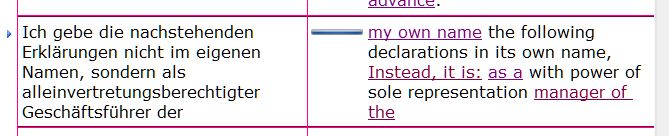
So how helpful is this new function? To illustrate this, let's look at one example sentence from a complicated German land purchase and partitioning contract in two alternative versions: with and without DeepMiner:
My translation:
I make the following declarations not in my own name, but as a manager with power of sole representation of ...
Looking at the first half of the sentence, where do the phrases "my own name" and "the following declarations" come from in the example with DeepMiner? They are not in the terminology hits for this segment, and there is no whole sentence match. But the TM has many matches containing "die nachstehenden Erklärungen" and the translation "the following declarations" (although "nachstehend" on its own is only in the TB as "hereinafter"). The first three words "my own name" seem strange at first sight. Somehow, DeepMiner seems to have found a correlation between the words "ich ... im eigenen Namen" and the English "my own name", in spite of the fact that the TB entries which use "im eigenen Namen" only offer the English "its own name" and "his own name".
At least in this example, DeepMiner offers solutions which go beyond the conventional assembly and pretranslation routines in the previous version of DVX. In my experience, it is still a matter of trial and error - sometimes it finds surprisingly good suggestions, but sometimes it is not really helpful. One possible workflow to get the best of both worlds is to "Pretranslate" the whole file with DeepMiner activated and then, if the solution is not helpful, to "Assemble" the individual sentence without DeepMiner. To do this, the settings for Pretranslate are:
And the settings for Assemble (under Tools>Options>General) are:
I am still experimenting to find out how DeepMiner can be used to best advantage, so perhaps I will be able to add more insights at a later date. Before too long (hopefully) I will comment on some of the other features of DVX2 such as AutoWrite, the information design options in the variable grid layout etc.